








How to Set Up a Proxy on iPhone?
Last updated: 2026-10-31 14:49:53
For Rotating Proxies (Rotating Residential Proxies / Rotating Mobile Proxies / Rotating Datacenter Proxies)
Step 1: Get your rotating proxy details (Server, Port, Username, and Password) from your UtaProxy Dashboard.
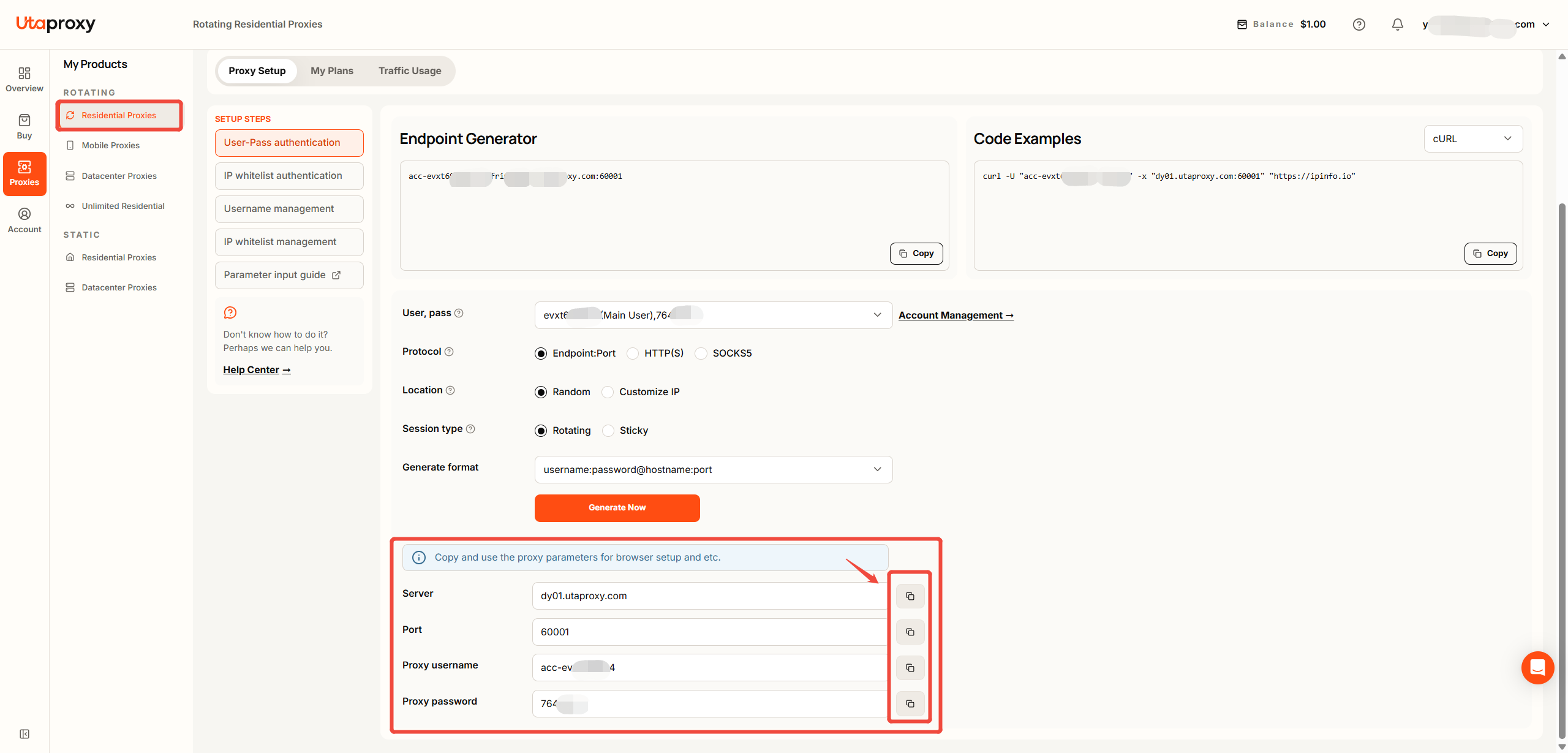
Step 2: Open Settings on your iPhone and tap Wi-Fi.
Step 3: Tap the Information (ⓘ) icon next to your connected Wi-Fi network to view the network details.
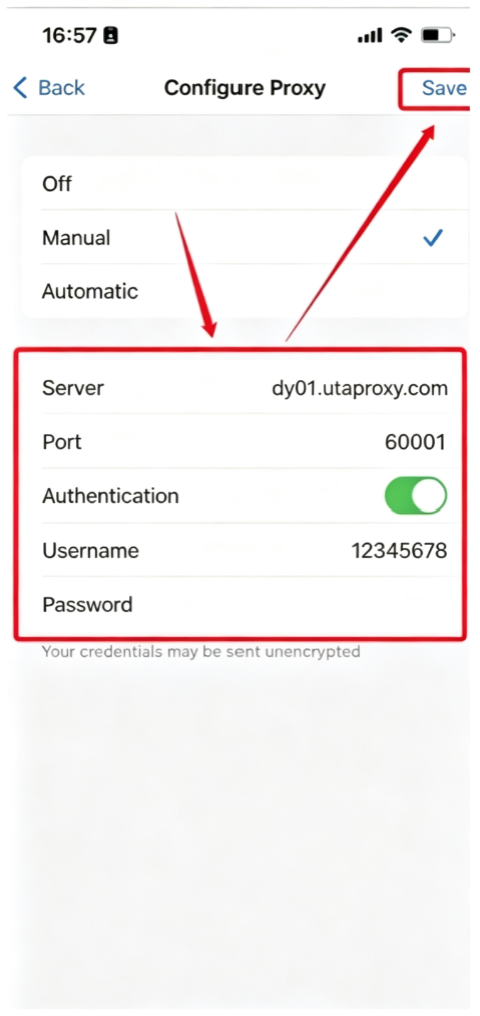
Step 4: Scroll down to the HTTP Proxy section and enable it.
Step 5: Select Manual as the proxy configuration method.
Step 6: Enter your proxy information:
Server: Your proxy server address
Port: Your proxy port
Enable Authentication and enter your Username and Password
For Static Proxies (Static Residential Proxies / Static Datacenter Proxies)
Step 1: Find your static proxy credentials (IP address, Port, Username, and Password) in your UtaProxy Dashboard.
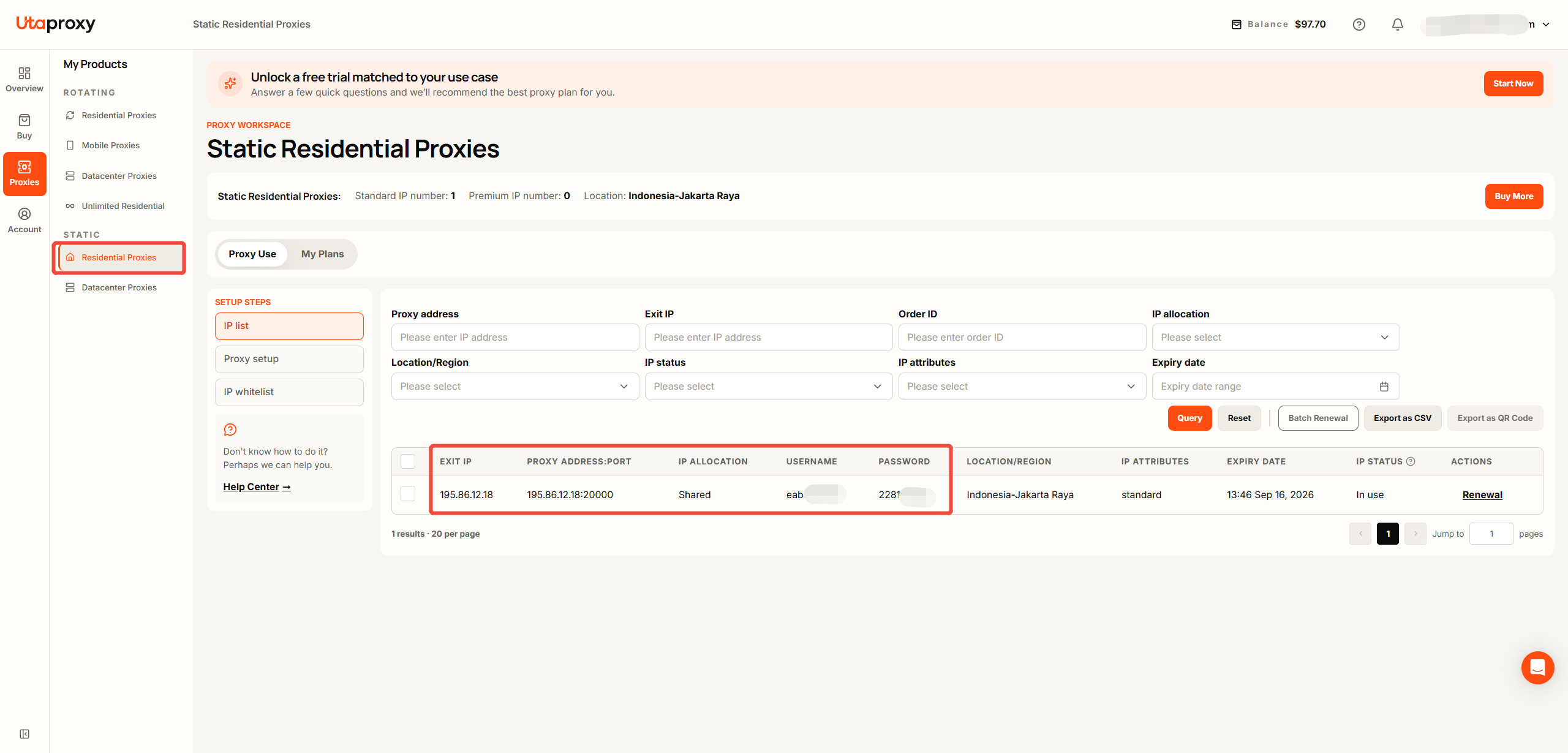
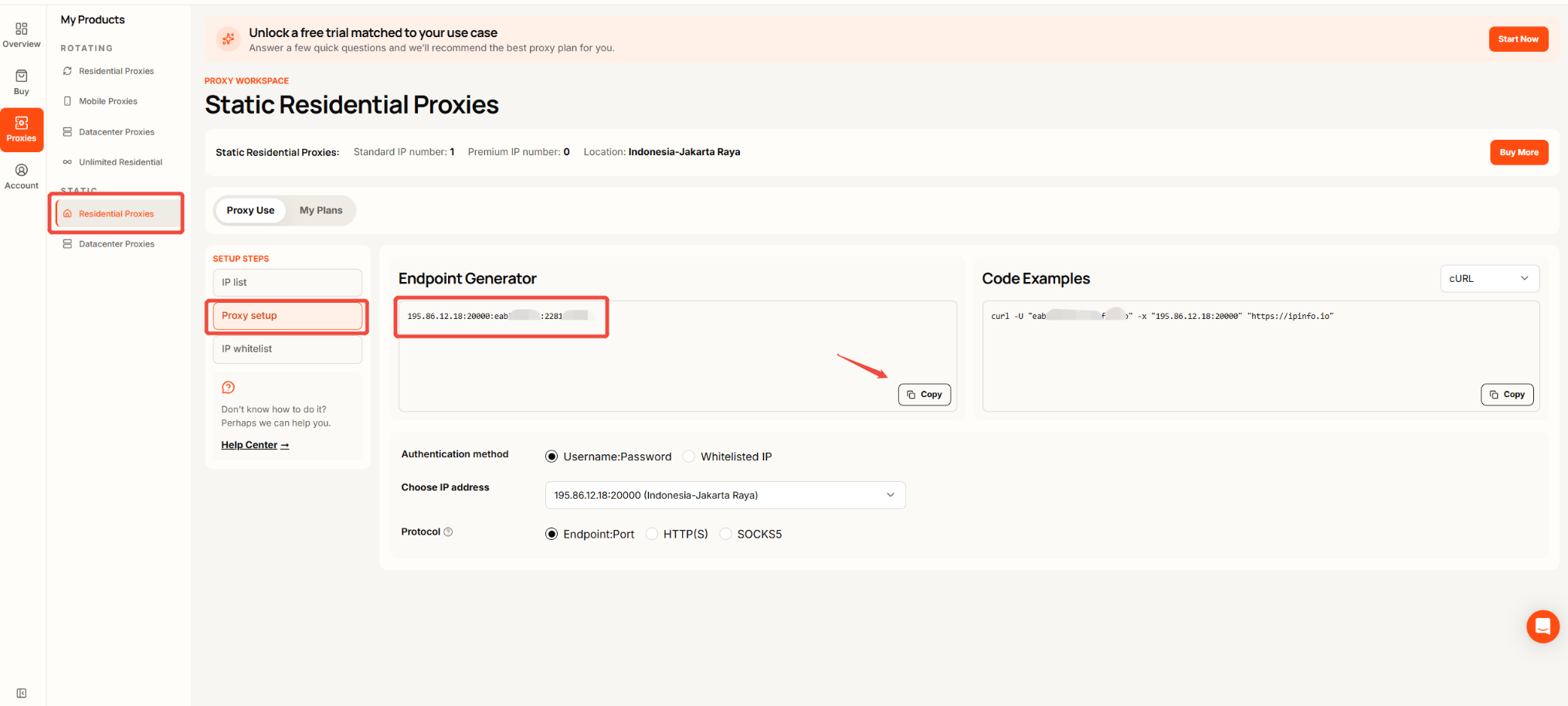
Step 2: Go to Settings on your iPhone and select Wi-Fi.
Step 3: Tap the ⓘ icon next to the connected Wi-Fi network to access its configuration page.
Step 4: Locate the HTTP Proxy section and enable proxy settings.
Step 5: Choose Manual configuration.
Step 6: Enter your static proxy details:
Server: Your static proxy IP address
Port: Your proxy port
Turn on Authentication and enter your Username and Password
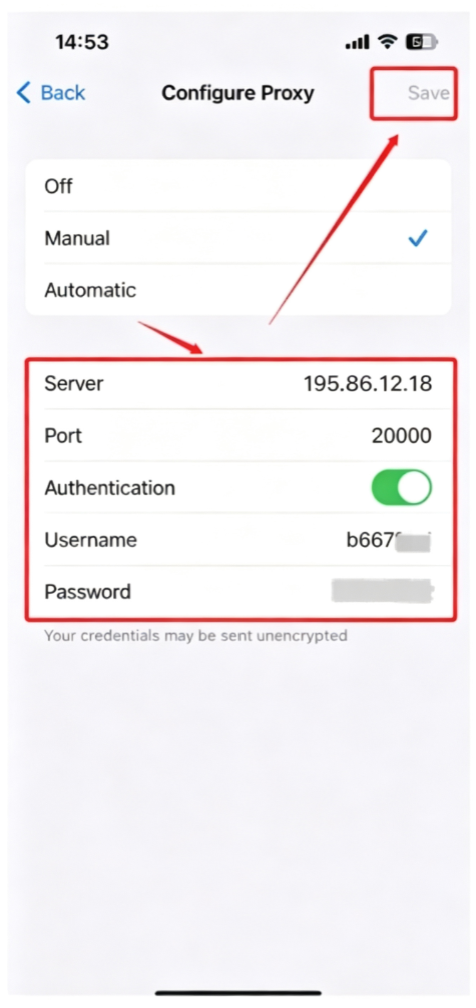
Tap Save to apply the settings. Your static proxy is now ready to use.
Was this article helpful?
Your response helps us keep this guide clear and accurate.
Rate this article