








How to Fix YouTube“Sign in to confirm you’re not a bot”
Seeing YouTube’s “Sign in to confirm you're not a bot” message can be frustrating, especially when you have not done anything unusual. The message means YouTube is requesting additional verification before you continue. By itself, it does not mean your account is banned or that your device is infected.
Possible causes include shared or VPN IP addresses, browser session or cookie problems, embedded playback, automated requests, and managed network security systems. The fastest way to investigate is to identify where the problem occurs and change one thing at a time.
Quick Answer
Try these five checks in order. After each one, test the same video.
- Open youtube.com directly and complete any sign-in or verification requested.
- Try another browser or a clean/Incognito profile.
- Temporarily turn off VPN, proxy, or iCloud Private Relay (if permitted).
- Open the video’s direct YouTube link (not the embedded player).
- Test on another device or a mobile hotspot.
Note: Wait 15–30 minutes and try again. Some verification flags are temporary and clear on their own. Repeatedly refreshing while the flag is active can make the problem last longer.
If the message is gone, stop. If it continues, use the diagnostic table and detailed steps below.
Quickly identify the likely cause
| What you notice | What to investigate first |
|---|---|
| Message appears in only one browser | Cookies, sessions, extensions, or privacy settings |
| Embedded video fails, but direct YouTube link works | The embedded player or host website |
| Several devices on the same network show the message | Shared public IP or network gateway |
| Problem occurs on school/work network | Managed security policies |
| Error appears only in a downloader or script | The tool’s authentication method |
| Happens on mobile app but not browser (or vice versa) | App cache, account sync, or network difference |
Note: These patterns are clues, not definitive diagnoses.
What Does YouTube “Sign In to Confirm You’re Not a Bot” Mean?
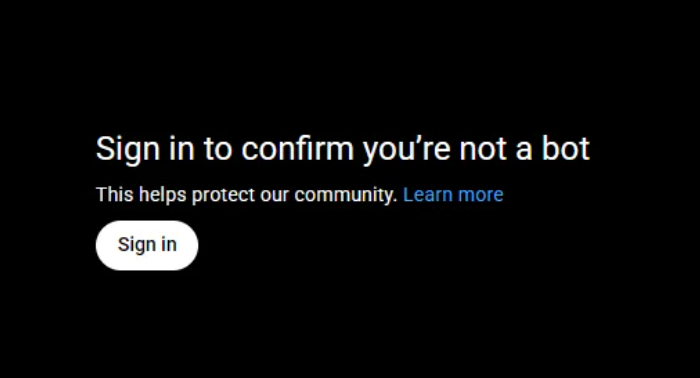
YouTube uses this message to request additional verification before allowing you to continue. It can appear when YouTube requires further checks on a request or viewing session.
The message alone does not prove that:
- Your Google account is banned.
- Your IP address is permanently blocked.
- Your device has malware.
- You have deliberately violated a rule.
Signing in and completing the requested verification is usually the simplest first step. If you are already signed in and the prompt keeps returning, investigate your browser session, network connection, playback context, or application.
If YouTube is unavailable altogether on a school, workplace, or public network—not just asking you to verify that you are not a bot—the issue may involve a network restriction. See our guide to diagnosing why YouTube is blocked and choosing appropriate solutions.
Why Does YouTube Show This Message?
Here are the main possibilities:
1. VPNs, proxies, and shared IP addresses
VPNs and proxies may route multiple users through the same IP address. If traffic from that address triggers additional checks, YouTube may ask you to verify your identity.
2. Shared networks and security gateways
Public Wi-Fi, mobile carriers using CGNAT, and school or workplace networks may share public IP addresses. Cisco has also documented a specific YouTube verification issue involving its Secure Access service in a September 15, 2026 advisory. If multiple users on a managed network are affected, ask the administrator to investigate.
3. Browser cookies and privacy settings
Blocked cookies, interfering extensions, restrictive privacy settings, or disabled JavaScript may disrupt sign-in or playback. This is worth checking if the error appears in only one browser.
4. Embedded YouTube videos
An embedded video may behave differently from the same video opened directly on YouTube. Test the direct link to check whether the issue is limited to the embedded player or the original website.
5. Automated or unusually frequent requests
Downloaders, scripts, or other automated tools may trigger additional checks even when ordinary browser playback works. If the error appears only in one tool, check its current documentation and authentication options.
Some cases are temporary. If reasonable checks do not identify a clear cause, pause and try again later rather than refreshing repeatedly.
For official information, also check YouTube Help and Google Account Help. This guide focuses on practical diagnosis that most users can perform themselves.
How to Fix the Error Step-by-Step
Follow the steps in order. Test the exact same video again before moving to the next step. If the problem is resolved, you do not need to continue.
Step 1. Open YouTube directly and complete any verification
Start with the simplest check.
- Open a normal new browser tab and visit youtube.com.
- Sign in to the Google account you normally use for YouTube, if prompted.
- Complete the verification requested by YouTube.
- Return to the video and check whether playback works.
If the video originally appeared on another website, open its direct YouTube link. This helps determine whether the problem is specific to the embedded player.
If YouTube repeatedly asks you to sign in even after you have done so, continue to the browser checks below.
Step 2. Check your browser, cookies, and extensions
If the message occurs in one browser but not another, investigate the browser before changing your network.
Try the following:
- Open YouTube in another browser or a clean browser profile. An Incognito or private window can be a useful test, although its cookie and extension behavior varies by browser.
- Temporarily disable extensions that block scripts, modify requests, or aggressively filter website content.
- Make sure JavaScript is allowed for YouTube and Google sign-in pages.
- Update your browser if it is outdated.
- If the problem continues, clear site data for
youtube.comand the relevant Google sign-in pages, then sign in again.
Clearing all browsing data is rarely necessary as a first step. Clearing site data can sign you out and remove website preferences, so start with the affected sites only.
If YouTube works in another browser or after a clean session, the problem may be related to your original browser's cookies, extensions, or settings. Restore your preferred settings gradually to identify the specific cause.
Step 3. Test your VPN, proxy, or iCloud Private Relay
A VPN, proxy, or privacy relay can change how your traffic reaches a website, including the public IP address the website sees. Shared IP addresses may also carry traffic from many different users.
To test whether the connection is involved:
- Note whether the message started after you enabled a VPN, proxy, or Private Relay.
- If permitted, temporarily turn off the relevant service.
- Reload YouTube and test the same video.
- Compare the result with the original connection.
On Apple devices, Apple's Private Relay guidance explains how to manage the feature and, in supported configurations, allow a website to see your IP address for testing. The available options vary by device, operating system, browser, and network.
If the message disappears, the connection path is contributing. Do not disable required security tools on managed devices without administrator approval.
Step 4. Check whether the problem affects one video, one browser, one device, or your whole network
Compare the same video under different conditions. Change one variable at a time.
- One embedded video fails: Open its direct YouTube link. If direct playback works, investigate the original website or embedded player.
- Every YouTube video fails in one browser: Revisit the browser and session checks in Step 2.
- The same problem appears in different browsers on one network: Test a permitted alternative network if available.
- The problem follows one device across networks: Check that device’s browser, app, privacy settings, and sign-in session.
- The problem appears across multiple devices and networks: A local browser issue becomes less likely. Check for a temporary service issue or an account-specific sign-in problem.
Some videos have their own restrictions or sign-in requirements. If a video cannot play in an embedded player, that does not necessarily mean the verification message is caused by your IP address.
Step 5. Troubleshoot the Mobile app and other devices
If the message appears in the YouTube app but not in a browser—or the other way around—test the application separately.
On Android:
- Force-close the YouTube app and reopen it.
- Check for an app update.
- If the problem continues, open your device settings and look for YouTube under Apps. If available, clear the app cache. Menu names vary by Android version and manufacturer.
- Test the same video in a mobile browser.
On most Android devices: Settings → Apps → YouTube → Storage → Clear Cache. Do not choose “Clear Data” unless you are ready to sign in again.
On iPhone or iPad:
- Force-close YouTube and reopen it.
- Check for an app update.
- Test the video in Safari or another supported browser.
- If the issue persists, consider reinstalling the app as a later step. Reinstallation may remove downloaded content and require you to sign in again.
Extra tip for mobile apps: Clearing cache is usually enough. Only reinstall if clearing cache + force-close does not solve it. Reinstallation will remove offline downloads and force you to sign in again.
On a smart TV or streaming device:
- Close and reopen the YouTube app.
- Check for app or system updates.
- Restart the device if needed.
- If appropriate, sign out of YouTube and sign back in.
Compare Wi-Fi with mobile data or another permitted network. If only one app is affected, focus on its state and sign-in session. If multiple apps and devices on the same network are affected, investigate the connection.
Step 6. Check your home network and public IP address
If multiple devices on your home network show the same message, the shared network connection may be a useful clue.
Try the following:
- Test YouTube on a second device connected to the same network.
- If available, compare with a trusted mobile hotspot or another network you are permitted to use.
- If YouTube works on the alternative network but not on your home connection, restart your router if appropriate and test again.
- If the problem continues, contact your internet service provider and explain that YouTube repeatedly requests verification across devices.
Some providers assign public IP addresses dynamically, while others use shared addressing such as CGNAT. Restarting a router does not necessarily change your public IP address, and changing networks does not guarantee that the message will disappear.
Step 7. Troubleshoot school, workplace, or enterprise networks
Do not try to bypass managed security yourself. Give the administrator:
- The exact verification message and when it appears.
- Whether multiple users or devices are affected.
- Whether YouTube works outside the managed network, if you are permitted to test.
- Whether the problem occurs on direct YouTube pages, embedded videos, or both.
- The browser, device, and network security service involved, if known.
These measures are not universal fixes. An administrator should evaluate the security implications and follow the organization's policies before changing routing or decryption settings.
Step 8. Troubleshoot yt-dlp and other automated tools
If the message appears only in a downloader or script:
- Update the tool to its current supported version.
- Review its official documentation for the specific error and supported authentication options.
- Check whether ordinary YouTube playback works in your browser under the same network conditions.
- Avoid excessive repeated requests while troubleshooting.
- Never upload account credentials or session cookies to an unknown website or third-party service.
These methods can involve sensitive session data, so follow the project's security guidance and use only methods appropriate for your own account and permitted activity.
If the same video works in a normal browser but the automated client keeps requesting verification, the tool's configuration or access method may be involved. This does not necessarily indicate a problem with your browser or Google account.
If the message appears only in yt-dlp, follow our step-by-step guide to fixing the yt-dlp “Sign in to confirm you're not a bot” error, including checks for cookies, JavaScript runtime requirements, PO Tokens, and VPS-related issues.
When to Stop Troubleshooting
You do not need to keep changing settings indefinitely. Stop and reassess when:
- You have tested another browser and a permitted alternative network without finding a difference.
- You can sign in successfully, but the message continues to return.
- Several users on a managed network encounter the same warning.
- The error occurs only in one third-party tool and persists after checking its documentation.
The next action depends on where the problem occurs. Contact your network administrator if it is limited to a school or company network. Contact your internet service provider if evidence points to your home connection. For persistent browser or account problems, consult YouTube Help.
If the issue appears temporary, wait before testing again. Repeatedly refreshing the page or rapidly changing network settings can make diagnosis harder.
How to Reduce the Chance of Seeing the Error Again
- Keep your browser and YouTube app updated. Updates can resolve compatibility problems affecting sign-in, cookies, and playback.
- Allow the site features needed for sign-in. Check that browser settings or extensions are not unnecessarily blocking functionality required by YouTube.
- Avoid excessive automated requests. If you use third-party tools, keep them updated and follow their documentation and applicable service rules.
- Change one network setting at a time. Repeatedly switching VPN servers, proxies, or network configurations makes it harder to identify what triggered the message.
- Record when the error occurs. Note the browser, device, video, and network involved. These details can help you identify recurring patterns if the problem returns.
These cannot guarantee the prompt will never appear, but consistent sessions and clean testing habits make it less frequent and easier to resolve.
FAQs
Why does YouTube say “Sign in to confirm you're not a bot”?
YouTube is requesting additional verification. Possible factors include your network, IP address, browser session, or the way the video is being accessed.
Does this mean my Google account is compromised or banned?
No. The message is a verification request tied to the current connection or session. It does not mean your account has been banned or that someone else is using it.
Why does the message only appear on embedded videos?
Embedded players sometimes cannot share the same signed-in session as the main YouTube site. Opening the video directly on youtube.com is the fastest way to test whether the problem is limited to the embed.
Is this related to ad blockers or YouTube Premium?
Ad blockers or privacy extensions can occasionally interfere with cookies and scripts that YouTube uses for verification. Temporarily disabling them is a useful test, but the message itself is not caused by having (or not having) YouTube Premium.
Why does YouTube ask me to sign in when I'm already signed in?
Your session may not be recognized correctly. Open YouTube directly, sign in again if prompted, and test another browser if the problem persists.
Can a VPN or proxy cause the YouTube “not a bot” message?
Yes, it may contribute. Temporarily testing without the VPN or proxy can help determine whether the connection is involved, but it is not a guaranteed fix.
Will changing my IP address fix the error?
Not necessarily. The cause may involve your browser, session, video, or application rather than the IP address alone.
How long does the YouTube verification message last?
There is no fixed duration. Some cases resolve after verification or a short wait, while others require further troubleshooting.
Can I watch YouTube without signing in?
Some videos can be watched without signing in, depending on their restrictions and the current viewing session. If YouTube requires verification, opening the video elsewhere may not remove that requirement.
Will a residential or dedicated proxy prevent YouTube verification?
No. No proxy type can guarantee that YouTube will never request verification. Identify the likely cause before paying for a proxy solely to remove the warning.
Final Verdict
The “Sign in to confirm you're not a bot” message is a verification request, not proof that your account is banned. Start by signing in on YouTube directly, then systematically check your browser session, VPN or privacy settings, embedded versus direct playback, and network connection.
Change one variable at a time and test after each change. If the issue is limited to a managed network or a specific automated tool, give the details to the appropriate administrator or consult the tool's official documentation.
The goal is to identify the cause, not simply change your IP address and hope the message disappears.
Need Proxies for Authorized YouTube Projects?
If you need a YouTube proxy endpoint for authorized web testing or data-collection tasks, explore UtaProxy's options. This is not required for normal viewing.
Daniel Carter
Proxy & Web Data Specialist
Daniel Carter is a Proxy & Web Data Specialist at UtaProxy, focusing on proxy technology, web data collection, and online infrastructure. He writes practical guides and in-depth insights to help businesses understand proxy solutions, choose the right proxy type, and build more reliable data workflows.
You May Also Be Interested
YouTube Unblocked in 2026: Methods, Limits & Troubleshooting
YouTube blocked? Identify the cause, compare practical fixes, and troubleshoot network, DNS, browser, and playback problems.

How to Fix "YouTube There Was a Problem with the Server 400" Error
Seeing YouTube's "There was a problem with the server [400]" error? Get quick, step-by-step fixes for mobile, desktop & Smart TV — solved in minutes.

Fix yt-dlp "Sign in to confirm you're not a bot" and Why It Happens
Learn why yt-dlp shows the bot verification error and how to troubleshoot cookies, network restrictions, and compatibility issues.