




How to Fix "YouTube There Was a Problem with the Server 400" Error
You tap play. Instead of your YouTube video, a blank screen stares back: "There was a problem with the server [400]." 😩 Annoying, yes. Fixable, also yes — and usually in under 5 minutes.
Here's the good news first: an HTTP 400 error is a "Bad Request." It means your device sent YouTube a request its servers couldn't process — not that YouTube is broken. In the vast majority of cases, the fix lives on your device, not YouTube's end. Let's get you back to watching. 👇
⚡ Quick Fix Checklist
Short on time? Try these five in order before anything else — they solve most cases:
- 🔄 Force-close and reopen the YouTube app (or hard-refresh the browser tab)
- 📶 Switch networks — Wi-Fi ↔ mobile data
- 🧹 Clear the app cache / browser cookies for YouTube
- 🕒 Check that your device's date & time are set automatically
- ⬆️ Update the YouTube app or your browser to the latest version
Still stuck? Keep reading — we'll walk through every cause and the exact steps to fix it, on mobile, desktop, and Smart TV.
What Is YouTube Error 400? 🤔
Every time your device contacts YouTube, it sends a request packed with session data, a system timestamp, and connection details. If any piece of that request is malformed or corrupted, YouTube's server rejects it outright and throws a 400 status — hence "Bad Request."
How the Error Shows Up on Each Device
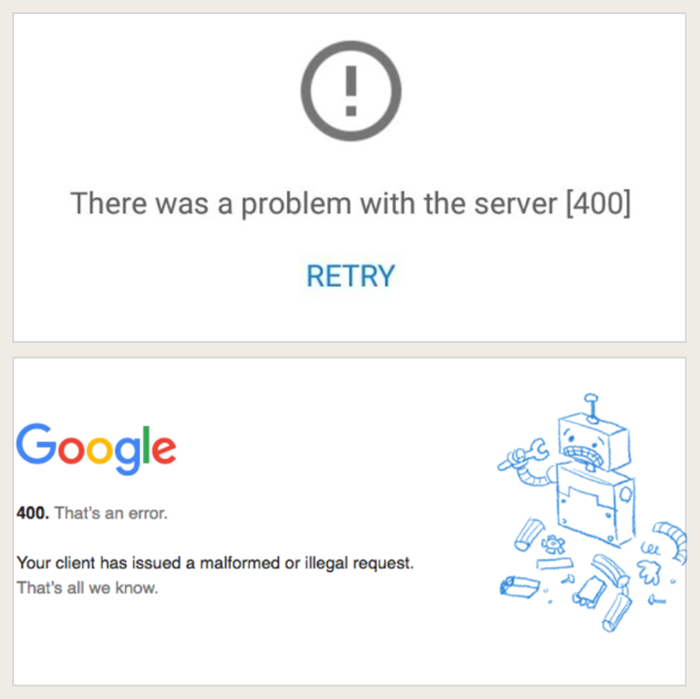
- 📱 Mobile (Android & iOS): A white screen with "There was a problem with the server [400]" and a blue RETRY button.
- 🖥️ Desktop browsers (Chrome, Edge, Firefox, Safari): A grey or white screen showing:
400. That's an error.
Your client has issued a malformed or illegal request. That's all we know. - 📺 Smart TVs & streaming boxes: Playback halts, a server error alert appears, and you're prompted to reload the video or restart the app.
Knowing exactly how the error looks on your screen makes it much easier to pick the right fix — so let's look at what's actually causing it.
What Causes YouTube Error 400? 🔍
Several local settings can trigger a "bad request" signal. Here's a quick-reference table so you can spot your likely culprit fast:
| Root Cause | How It Triggers Error 400 |
|---|---|
| 📡 Unstable network connection | Weak Wi-Fi, spotty mobile data, or strict firewall rules interrupt data packets mid-transfer, corrupting the request. |
| 🍪 Corrupted app cache & cookies | Stale login session files or damaged temporary data interfere with a clean request to YouTube's servers. |
| 🌐 Misconfigured proxy or VPN | Incorrect header forwarding, proxy timeouts, or a flagged IP address can distort your traffic. If you regularly need a stable connection for streaming or region-flexible access, a clean, well-maintained proxy avoids this issue — see UtaProxy's YouTube proxies for a reliable option. |
| 📲 Outdated app or browser | Old YouTube app versions try to connect using deprecated APIs that YouTube no longer supports. |
| 🕒 Date & time mismatch | An inaccurate device clock invalidates SSL certificates and request timestamps sent to YouTube. |
| 🧩 Browser extensions & ad blockers | Overzealous ad blockers or script blockers can strip or alter request headers, causing rejection. |
| 🔒 Restricted Mode or data restrictions | YouTube's Restricted Mode filter, or custom Android data-usage limits, can occasionally conflict with server requests. |
| 👤 Google account sync issues | A corrupted or out-of-sync account session can cause the server to reject requests tied to that login. |
Because most users experience this glitch while browsing on mobile phones such as Samsung Galaxy or Google Pixel devices, starting with mobile-specific troubleshooting offers the fastest path to a fix.
📱 How to Fix YouTube Error 400 on Mobile
If you encounter the "There was a problem with the server [400]" pop-up on an Android or iOS device, work through these steps in order of increasing technical effort:
1. Restart the YouTube App
Close it fully from your recent-apps switcher, not just minimize it. This clears the temporary session and forces a fresh connection on reopen.
2. Switch Network Connections
Disconnect from your current Wi-Fi network and switch to Cellular Data, or vice-versa. A temporary network drop on your local router can corrupt outgoing requests.
3. Clear App Cache and Data
- Android: Settings → Apps → YouTube → Storage → tap Clear Cache. Still broken? Tap Clear Data too (you'll need to sign in again).
- iOS: iOS doesn't offer a direct cache-clear option for individual apps. Go to Settings → General → iPhone Storage → YouTube → tap Offload App, or simply delete and reinstall it from the App Store.
4. Check Mobile Data Permissions (Android)
Some Android devices may restrict YouTube's mobile data usage or background activity.
Go to Settings → Apps → YouTube → Mobile Data / Mobile Data & Wi-Fi and make sure Mobile Data and Background Data are enabled.
If Data Saver is enabled on your device, also allow YouTube to use Unrestricted Data.
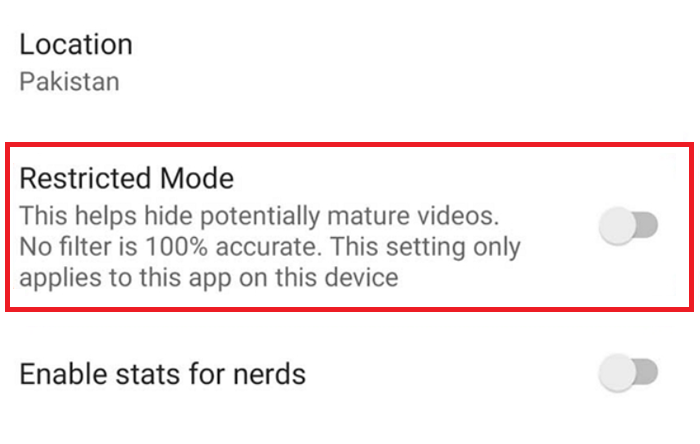
5. Turn Off Restricted Mode
Restricted Mode filters mature content but has been known to interfere with playback for some users. In the app: Profile picture → Settings → General → toggle Restricted Mode OFF.
6. Fix Date & Time Settings
An inaccurate clock breaks the secure handshake with YouTube's servers. Settings → System → Date & Time → enable Set time automatically.
7. Update or Reinstall the App
Open the Play Store or App Store, search YouTube, and install any pending update. If it's already current, delete and reinstall it to rebuild any corrupted files.
8. Adjust DNS or Use a Reliable Proxy
A polluted ISP DNS record can fail to resolve YouTube's CDN properly. Try switching your Wi-Fi's DNS to Google Public DNS (8.8.8.8 / 8.8.4.4). If you're streaming across regions or running multiple sessions and want consistently clean requests, UtaProxy's YouTube proxies are built to solve exactly this problem. 🚀
Reliable Proxies for Smoother YouTube Access
Access YouTube more reliably across regions or multiple sessions with UtaProxy’s clean IPs and stable proxy connections.
If mobile steps do not resolve your issue or if you prefer streaming on a desktop computer, tailored browser solutions are available.
🖥️ How to Fix YouTube Error 400 on Desktop
Fixing YouTube Error 400 on Windows, macOS, or Linux web browsers requires checking local browser cache, network settings, and extension configurations. Work through these steps sequentially:
1. Check YouTube's Server Status
Before touching local settings, check a tracker like DownDetector, or YouTube's own help/status pages, to rule out a broader outage. Remember: HTTP 400 is almost always client-side, not a backend failure.
2. Hard-Refresh and Check the URL
Press Ctrl + F5 (Windows) or Cmd + Shift + R (Mac) to bypass cached files. Also glance at the address bar — a malformed or truncated video ID can trigger the same error.
3. Test in Incognito / Private Mode
Open a private window (Ctrl + Shift + N) and load YouTube. Plays fine here? Your normal browser profile has corrupted cookies or a conflicting extension.
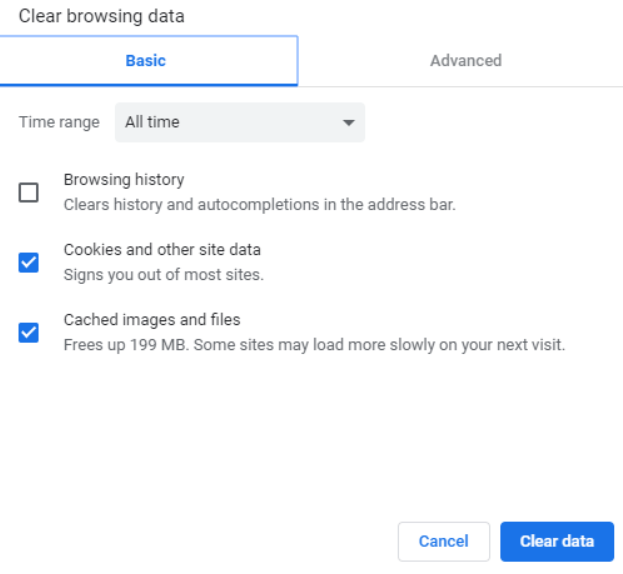
4. Clear Cookies and Cache
- Chrome: three-dot menu → Settings → Privacy and security → Delete browsing data.
- Select Cookies and other site data and Cached images and files.
- Set the time range to All time and click Delete data.
5. Disable Extensions
Ad blockers, script managers, and VPN extensions can silently alter request headers. Go to chrome://extensions/, disable everything, then reload YouTube to isolate the culprit.
6. Check Your Proxy or VPN
An unstable VPN node or misconfigured proxy can distort HTTP headers, making YouTube's security layer flag your traffic as malformed. Try switching VPN nodes, testing HTTP vs. SOCKS5, or disabling the proxy entirely to isolate the issue.
7. Flush DNS and Switch Servers
- Windows: Open Command Prompt as Administrator, run
ipconfig /flushdns. - macOS: Open Terminal, run
sudo dscacheutil -flushcache; sudo killall -HUP mDNSResponder.
8. Update Your Browser
An outdated browser may lack the security certificates or web standards YouTube now requires. Check Settings → About [Browser] for pending updates.
9. Reset Network Settings
Last resort: reset your OS network configuration to factory defaults, then reboot both your computer and your router.
Desktop gives you the most diagnostic tools — but TVs need their own approach, since you don't have dev tools or extensions to lean on.
📺 How to Fix YouTube Error 400 on Smart TVs & Android TV
Smart TVs, Apple TVs, Firesticks, and Android TV boxes frequently encounter Error 400 due to stale background memory states or out-of-sync internal clocks. Follow these television-specific troubleshooting steps:
1. Force-Stop and Restart the App
Settings → Apps → YouTube → Force Stop, then relaunch from the home dashboard.
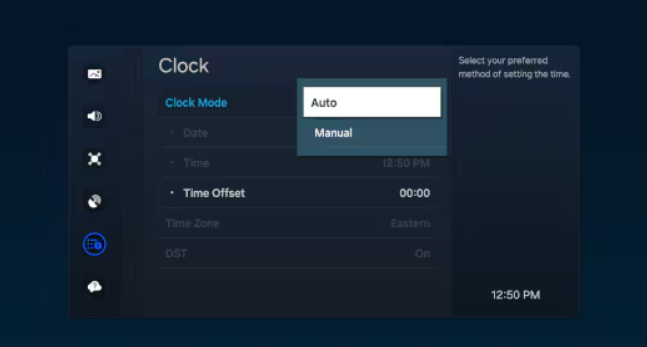
2. Sync Date & Time
Make sure your TV's date and time are set correctly. Depending on your TV or operating system, this option may be located under Settings → System → Date & Time, Clock, or a similar menu.
Enable Automatic Date & Time or Use Network-Provided Time if available.
💡 Pro tip: Incorrect system time can sometimes interfere with secure connections, authentication, or app services. If YouTube stopped working after a power outage or restart, check that your TV's date and time are correct.
3. Clear App Cache and Data
Settings → Apps → YouTube → Clear Cache, then Clear Data if the problem persists.
4. Sign Out and Back In
Open the app's settings sidebar, sign out completely, then re-link your account using the activation code shown at youtube.com/activate.
Not sure which fix applies to you? Use the table below to match your symptom to the likely cause.
🧭 Troubleshooting Decision Table
| Observed Symptom | Likely Cause | Recommended Fix |
|---|---|---|
| Works in Incognito, fails in normal tab | Corrupted cookies or an extension conflict | Clear browser cookies & disable ad blockers |
| Works on mobile data, fails on Wi-Fi | Router DNS issue or a blocked route | Flush DNS & switch to Google DNS (8.8.8.8) |
| Error 400 appears with CAPTCHA prompts | Low-trust or flagged proxy/VPN node | Switch nodes, or use a reputable, well-maintained proxy |
| Smart TV throws Error 400 on launch | Inaccurate TV clock or stale app cache | Enable auto time sync & clear app cache |
Still stuck after every step above, across multiple devices and networks? Contact your ISP, or send YouTube feedback directly: on mobile, tap your profile picture → Settings → Send feedback; on desktop, use the profile menu's Send feedback option. Include your device, OS, app version, and what you were trying to watch — it helps a lot.
Still unable to access YouTube?
If you no longer see Error 400 but YouTube remains blocked or unavailable, the issue may involve network restrictions, account settings, device management, or video availability. See our YouTube unblocked troubleshooting guide to identify the cause and choose an appropriate next step.
❓ Frequently Asked Questions
Is YouTube Error 400 on my end or YouTube's end?
Overwhelmingly, it's client-side. 🙋 It usually comes down to corrupted cookies, a stale app cache, outdated software, or a local network misconfiguration — not a platform-wide outage. Real YouTube-side outages producing this exact error are rare.
Why does this happen more often with a VPN or proxy?
Routing traffic through a VPN or proxy can enlarge, alter, or malform your request headers during encapsulation. If that proxy's IP also has a poor reputation score or is under heavy load, YouTube's edge security may reject the request outright with a 400.
Will clearing YouTube's app data delete my downloads?
Yes — "Clear Data" resets the app to factory state, which removes offline downloads. ✅ Good news: it won't touch your subscriptions, playlists, or watch history, since those live on your Google account in the cloud, not on your device.
Is turning off Restricted Mode actually safe?
Yes, it simply stops YouTube from filtering out age-restricted or sensitive content. If you're on a shared, managed, or child's account, check with whoever manages it before disabling — the setting may be there intentionally.
Final Verdict
The "YouTube There Was a Problem with the Server [400]" error can seem alarming, but it is fundamentally a localized communication breakdown between your device and YouTube's servers. By systematically clearing app cache, adjusting date and time settings, updating software, and verifying clean network proxy routing, you can eliminate this error and get back to uninterrupted video streaming across all your devices. 🎬

Daniel Carter
Proxy & Web Data Specialist
Daniel Carter is a Proxy & Web Data Specialist at UtaProxy, focusing on proxy technology, web data collection, and online infrastructure. He writes practical guides and in-depth insights to help businesses understand proxy solutions, choose the right proxy type, and build more reliable data workflows.