








Fix yt-dlp "Sign in to confirm you're not a bot" and Why It Happens
If yt-dlp displays this error when you try to download a YouTube video:
ERROR: [youtube] VIDEO_ID: Sign in to confirm you're not a bot.
Use --cookies-from-browser or --cookies for the authentication.YouTube is requesting additional verification before serving the content. The cause may involve your network, browser session, yt-dlp version, or changes in YouTube's player and verification systems.
Updating yt-dlp and using browser cookies are useful troubleshooting steps, but neither guarantees a fix. The best approach is to identify where the request is failing before changing settings or switching networks.
This guide explains how to troubleshoot the error, including authentication, JavaScript runtime requirements, PO Tokens, and problems that occur on VPS or cloud servers.
Quick Answer: Try These First
Start with these checks in order:
- Update yt-dlp. Use the update method for your installation.
- Test the same video in a browser on the same computer and network.
- Try browser cookies if authentication may be involved. This is particularly relevant when the video plays in your signed-in browser but fails in yt-dlp.
- Check the error logs if the problem persists, especially for JavaScript runtime, PO Token, or HTTP 403 errors.
- Compare networks and environments if yt-dlp works locally but fails on a VPS or cloud server.
For example, if you use a supported Chrome installation, you can try:
yt-dlp --cookies-from-browser chrome "VIDEO_URL"Replace VIDEO_URL with the actual YouTube video URL. If the problem continues, follow the detailed troubleshooting steps below.
Why Does yt-dlp Show “Sign in to Confirm You're Not a Bot”?
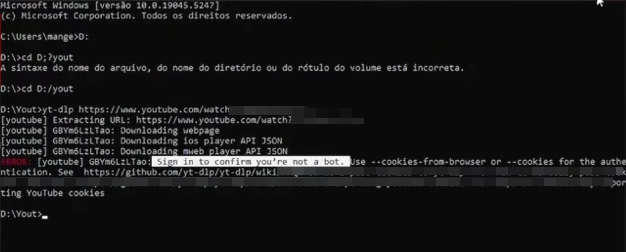
The message does not automatically mean your Google account is banned or that yt-dlp is permanently broken. Several issues can produce similar symptoms.
1. IP address or network restrictions
YouTube may challenge requests from particular IP addresses or shared networks. This can affect connections through VPNs, VPS hosting, cloud servers, or networks where many users share a public IP address. If the same command works on your home connection but fails on a VPS, the network is worth investigating. However, this difference alone does not prove that the server's IP address is responsible.
2. Missing or invalid browser cookies
Some YouTube videos require an authenticated session. yt-dlp supports reading cookies from a browser or loading them from a Netscape-format cookie file. Cookies may help when authentication is the issue, but they cannot guarantee access if YouTube continues to challenge the connection or the session is invalid.
3. An outdated yt-dlp version
YouTube changes its website, player, and request-handling mechanisms regularly. An older yt-dlp version may no longer handle some extraction requirements correctly. Updating can resolve compatibility issues, but it will not necessarily resolve authentication or network restrictions.
4. JavaScript runtime or PO Token requirements
yt-dlp uses external JavaScript components to solve certain YouTube challenges. Depending on your installation, the required JavaScript runtime or EJS challenge-solving components may need to be configured. YouTube also requires Proof of Origin (PO) Tokens for certain player clients and requests. Missing tokens can cause HTTP 403 errors or unavailable formats.
These are distinct technical issues, not interchangeable explanations for every bot-verification message. Investigate them when the diagnostic output indicates a runtime, token, player-client, or format problem.
Step-by-Step Fixes
Step 1. Update yt-dlp correctly
First, check your installed version:
yt-dlp --versionThe correct update command depends on how you installed yt-dlp.
Standalone executable
yt-dlp -Upip installation
python -m pip install -U "yt-dlp[default]"If your system uses python3, run:
python3 -m pip install -U "yt-dlp[default]"Package manager
Update yt-dlp through your package manager or follow the project's recommended installation method.
Avoid updating one Python environment while accidentally running a different yt-dlp executable. After updating, check the version again and retry the same video:
yt-dlp "VIDEO_URL"If the error persists, do not repeatedly reinstall yt-dlp. Continue with the browser test to narrow down the cause.
Step 2. Test the video in a browser on the same network
Open the exact video in a normal browser on the same computer and network where yt-dlp fails.
The result helps you determine which troubleshooting steps to try next.
- The browser also shows a verification message: Investigate general YouTube access and network conditions. Complete any normal verification process presented by YouTube, if appropriate.
- The browser works, but yt-dlp fails: Focus on authentication, cookies, extractor configuration, and any runtime or token errors in the logs.
- It works locally but fails on a VPS: Compare the network, software configuration, and authentication context of the two environments.
This test does not identify the cause by itself, but it helps distinguish a general access problem from one specific to yt-dlp.
Step 3. Try browser cookies if authentication is relevant
If the video plays in your signed-in browser but yt-dlp cannot access it, try passing cookies from that browser.
For Chrome:
yt-dlp --cookies-from-browser chrome "VIDEO_URL"Replace chrome with a supported browser where you are signed in, such as Firefox, Edge, Brave, Chromium, Opera, or Safari. Availability and behavior depend on your installation and environment.
If yt-dlp cannot read the browser cookies
If you see an error about copying the cookie database, decrypting cookies, or finding a browser profile:
- Confirm that yt-dlp is running under the same operating-system user account as the browser.
- Check the browser profile path and relevant permissions.
- If the cookie database is locked, close the browser completely, including background processes, and retry.
- If Chromium cookie decryption fails, consult the relevant troubleshooting guidance or try a supported alternative, such as Firefox or a properly exported cookie file.
Closing the browser is a troubleshooting step for certain database-access problems, not a universal requirement.
Export YouTube cookies to a file
If direct browser-cookie access does not work, you can try exporting cookies to a file using the procedure documented in the official yt-dlp YouTube extractor guide.
- Open a new private or incognito browser window.
- Sign in to YouTube in that window.
- In the same tab, navigate to
https://www.youtube.com/robots.txt. - Export the
youtube.comcookies using a compatible browser extension that supports Netscape-format cookie files. - Close the private or incognito window and do not reopen that session.
Then run:
yt-dlp --cookies cookies.txt "VIDEO_URL"Replace cookies.txt with the path to your exported file.
This procedure is intended to avoid problems caused by YouTube rotating account cookies in open browser tabs. It does not guarantee that the exported cookies will remain valid indefinitely.
Account safety
- Treat exported cookies like passwords because they may grant access to your account.
- Never upload cookie files to public issue trackers or unknown websites.
- Remove cookies, authorization headers, and other sensitive session data from diagnostic logs before sharing them.
- Use authenticated cookies only when necessary. yt-dlp warns that using an account can carry a risk of temporary or permanent restrictions. A separate account does not eliminate that risk.
If cookies fail, do not keep exporting new files without investigating the other possible causes.
Step 4. Reduce request frequency when appropriate
If you are downloading playlists or processing many videos, request pacing is worth reviewing. It may help with rate-related errors, but it is not a guaranteed fix for the exact bot-verification message.
For example, yt-dlp provides a sleep preset:
yt-dlp -t sleep "VIDEO_URL"You can also configure individual sleep options to suit your workflow.
For batch downloads, avoid unnecessarily aggressive parallel requests and repeated retries while YouTube is challenging access. If the error persists, pause and investigate instead of increasing the request volume.
Step 5. Check the JavaScript runtime and EJS configuration
If the logs mention JavaScript challenges, a missing runtime, or challenge-solving errors, inspect your EJS configuration.
For example, to check whether Deno is available:
deno --versionIf the command is not recognized, Deno may not be installed or available in your system's PATH. That alone does not prove that a missing runtime caused the bot-verification error.
The general process is to:
- Identify how yt-dlp was installed.
- Check whether the required EJS components are available.
- Install and configure a supported JavaScript runtime if required.
- Retry the same video and compare the diagnostic output.
Do not install additional components blindly. This step is most relevant when the logs indicate that JavaScript challenge solving is unavailable or failing.
Step 6. Check PO Tokens if the logs point to them
A Proof of Origin (PO) Token helps YouTube verify requests made through certain player clients. Depending on the client and request type, missing tokens can lead to HTTP 403 errors or unavailable formats.
To investigate:
- Run yt-dlp with verbose output:
yt-dlp -v "VIDEO_URL" - Look for messages related to PO Tokens, player clients, unavailable formats, or HTTP 403 responses.
- Consult the official PO Token Guide.
- Follow the current instructions for the affected client if a token is required.
The necessary configuration depends on the client and type of request. Do not assume that every bot-verification challenge is caused by missing PO Tokens. Likewise, avoid changing player clients randomly. A client-specific workaround may behave differently across yt-dlp versions and changing YouTube requirements.
Step 7. Investigate network and VPS issues
If yt-dlp works on your home computer but fails on a VPS or cloud server, compare the two environments before changing multiple settings.
| Possible difference | Why it matters |
|---|---|
| Public IP address | YouTube may treat requests from different networks differently. |
| Browser session | Your local machine may have a valid session that is missing on the server. |
| yt-dlp version and runtime | Different configurations can produce different extraction results. |
| Request frequency | High request rates may contribute to rate-related restrictions. |
What should VPS users do?
- Update yt-dlp on the server itself.
- Check the logs and confirm that the server has the required runtime and configuration.
- Test browser access on the same network if practical.
- Compare authentication and software settings with the local machine.
- Investigate network differences if the evidence points in that direction.
A proxy is not automatically required. A different connection may help diagnose a network-related problem, but no proxy type or provider guarantees that YouTube will accept the request.
If you need a more stable connection for authorized testing or data collection on a server, a premium ISP proxy can help reduce the chance of IP-based challenges. This is optional and not required for normal personal use of yt-dlp.
Step 8. Collect verbose logs and check known issues
If none of the previous steps resolve the problem, collect diagnostic output:
yt-dlp -v "VIDEO_URL"Check for details about:
- The installed yt-dlp version
- The extractor and player client involved
- Cookie or authentication errors
- JavaScript runtime or EJS failures
- PO Token requirements
- HTTP 403 responses and unavailable formats
If you report the issue, include your operating system, installation method, yt-dlp version, sanitized command, and relevant logs. Never publish cookies, authorization headers, account credentials, or other sensitive session information.
Common Mistakes to Avoid
- Repeatedly reinstalling yt-dlp: This may not help if the version is already current and the problem is network-related.
- Assuming cookies always fix the error: Cookies can help with authentication but cannot guarantee access.
- Changing the User-Agent without evidence: A browser-like User-Agent alone does not reproduce a complete browser session or satisfy every verification requirement.
- Changing player clients randomly: Use current documentation and diagnostic output to guide configuration changes.
- Assuming a residential proxy is necessary: The error alone does not establish that a proxy is required.
- Sharing cookie files or unredacted logs: Session cookies can expose your account. Keep them private and redact sensitive information.
- Repeatedly retrying during a challenge: Pause and investigate rather than increasing the request volume.
When to Stop and What to Do Next
Use this checklist to choose your next step:
- Browser and yt-dlp both fail: Investigate general YouTube access and network conditions.
- Browser works, but yt-dlp fails: Focus on cookies, authentication, extractor configuration, and diagnostic output.
- Only a VPS fails: Compare its network, software configuration, and authentication context with your local machine.
- Logs mention JavaScript or EJS: Follow the official runtime setup guide.
- Logs mention PO Tokens or unavailable formats: Consult the current PO Token documentation.
- The challenge persists: Stop repeated requests, check current GitHub issues, and retry later if appropriate.
If you report the issue, include the version, installation method, operating system, sanitized command, and relevant logs. This is more useful than reporting only that yt-dlp does not work.
If you see the same verification message in your browser or YouTube app, rather than only in yt-dlp, see our guide to fixing YouTube's “Sign in to confirm you're not a bot” error.
FAQs
Why does yt-dlp keep saying “Sign in to confirm you're not a bot”?
YouTube is requesting additional verification. Possible causes include network restrictions, authentication problems, or changes in yt-dlp's interaction with YouTube. The message alone does not identify a single cause.
Can cookies always fix the error?
No. Cookies may help when authentication is required, but they cannot guarantee that YouTube will accept the request. Check the network and extractor configuration if valid cookies do not help.
Will updating yt-dlp always solve it?
No. Updating is a sensible first step because it can address known compatibility problems, but it will not resolve every authentication or network restriction.
Why does yt-dlp work on my PC but not on my VPS?
The machines may use different IP addresses, browser sessions, runtimes, or configurations. Compare browser and yt-dlp behavior in each environment to narrow down the cause.
Do I need a proxy to fix this error?
Not necessarily. A different connection can help diagnose network-specific problems, but no proxy type or provider guarantees a fix. Authentication, runtime, or extractor issues may still need to be addressed.
What is the difference between bot verification and an HTTP 403 error?
The bot-verification message indicates that YouTube wants additional verification. HTTP 403 means a request was forbidden. A 403 can have several causes, including token requirements or other access restrictions, so the diagnostic output matters.
Seeing a different message, such as “There was a problem with the server [400]”? See our guide to fixing YouTube Error 400 for device- and browser-specific troubleshooting.
Final Verdict
The most reliable troubleshooting approach is to update yt-dlp, compare browser and downloader behavior on the same network, and then investigate authentication, runtime, token, or network issues based on the evidence.
Cookies can help when authentication is relevant, while request pacing may help with rate-related errors. Neither is a universal fix. If the problem occurs only on a VPS, investigate the server's network and configuration before assuming that you need a different proxy.
Power Your Authorized yt-dlp Projects
If you run yt-dlp on servers or need cleaner IP addresses for authorized workflows, a residential proxy service can be one tool worth considering.
Daniel Carter
Proxy & Web Data Specialist
Daniel Carter is a Proxy & Web Data Specialist at UtaProxy, focusing on proxy technology, web data collection, and online infrastructure. He writes practical guides and in-depth insights to help businesses understand proxy solutions, choose the right proxy type, and build more reliable data workflows.
You May Also Be Interested
How to Fix "YouTube There Was a Problem with the Server 400" Error
Seeing YouTube's "There was a problem with the server [400]" error? Get quick, step-by-step fixes for mobile, desktop & Smart TV — solved in minutes.


How to Fix YouTube“Sign in to confirm you’re not a bot”
Troubleshoot YouTube’s “Sign in to confirm you’re not a bot” with practical fixes for browser, VPN, network, mobile, and embedded-video issues.