








How to Change Chrome Proxy Settings on Windows, Mac & Linux
Confused by Chrome proxy settings? You are not alone. 😕
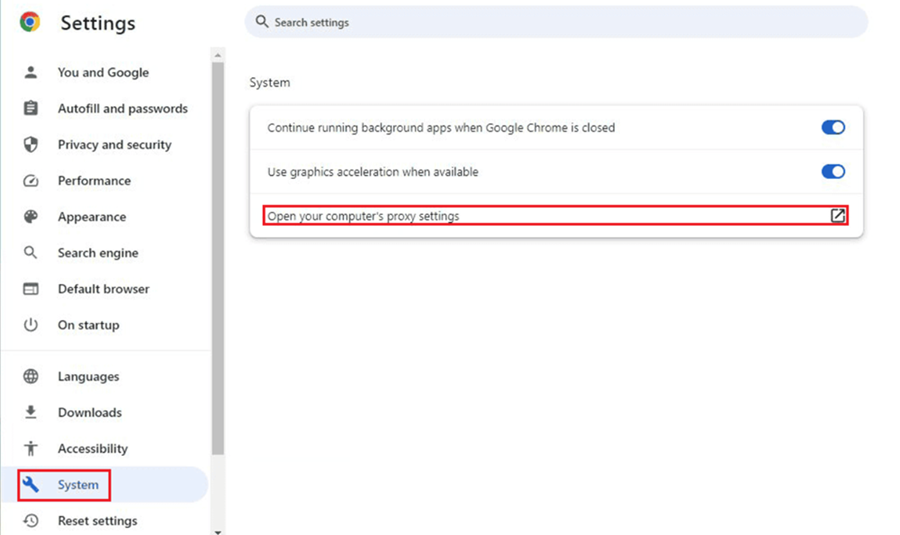
Click "Open your computer's proxy settings" in Chrome, and your operating system's network panel opens. No Chrome-specific menu appears. That is because Chrome uses your system proxy by default. Any change you make there can affect other apps too.
The good news: you have four ways to set a proxy for Chrome. Pick the one that fits your goal. You may want a system-wide tunnel, Chrome-only routing, or an automated setup for scripts.
This guide covers all four methods. You will also learn HTTP vs. SOCKS5, how to test your proxy, and how to fix common errors. ✅
⚡ Key Takeaways
- Native behavior: Desktop Chrome does not have a separate built-in proxy settings panel. By default, it uses your operating system's proxy configuration.
- System-wide effect: Changing your OS proxy settings can affect Chrome and other applications that use the system proxy configuration.
- Chrome-only proxy: To configure a proxy specifically for Chrome, use a compatible proxy management extension or launch Chrome with a proxy command-line flag.
- Protocol support: Chrome supports HTTP, HTTPS, SOCKS4, and SOCKS5 proxies. However, available configuration options vary by operating system. Some proxy types may require a browser extension, command-line flag, PAC script, or browser policy.
- SOCKS5 login limit: Chrome does not natively support username/password authentication for SOCKS5 proxies. If your proxy requires authentication, consider IP allowlisting or a local proxy forwarder.
Let us examine how proxy routing works under the hood before diving into configuration steps.
🔍 How Chrome Proxy Settings Work
A little background helps you pick the right method. It also makes errors much easier to debug.
Chrome's Native Integration with OS Settings
Chrome does not ship its own proxy control panel on desktop. When you go to chrome://settings/system and click the proxy link, Chrome simply opens your system's network settings. On Windows, that is the Proxy page in Settings. On macOS, it is the Network settings.
Chrome then reads whatever proxy you saved there.
Where Can Chrome's Proxy Come From?
Chrome can get its proxy from four places:
- 🖥️ Operating system settings (the default)
- 🧩 A browser extension that uses Chrome's proxy API
- ⌨️ A command-line flag such as
--proxy-server - 🏢 An enterprise policy set by an administrator
A managed policy or an extension can override what you set in the OS panel. If your settings keep "not working," check chrome://policy and chrome://extensions first.
Global vs. Browser-Only Proxy Routing
A global proxy sends traffic from many apps through the proxy server. Chat apps, updaters and other browsers may be included.
A browser-only proxy limits the tunnel to Chrome. Everything else stays on your normal ISP connection.
For more technical detail, see the Chromium proxy documentation.
Next, let us review the step-by-step methods to change your proxy configuration.
🛠️ Step-by-Step: How to Change Proxy Settings in Chrome
Choose the method that matches your workflow. Not sure which one to use? This table helps:
| Method | What It Affects | Best For | SOCKS5 Support |
|---|---|---|---|
| 1. System settings | Your whole device (apps that follow system proxy) | A quick, simple HTTP/HTTPS proxy | Limited |
| 2. Browser extension | Chrome only | Daily use and instant switching | Yes (no username/password) |
| 3. Command-line flag | The Chrome instance you launch | Testing, automation, isolated profiles | Yes (no username/password) |
| 4. Enterprise policy | Managed Chrome browsers | IT teams and company fleets | Yes |
Before You Start: Get Your Proxy Details 📝
Have these ready from your proxy provider:
- Proxy host (IP address or domain)
- Port number
- Protocol: HTTP, HTTPS or SOCKS5
- Username and password, or an IP allowlist option
Method 1: Change Chrome Proxy Settings via Your Operating System (Windows, Mac & Linux)
This is the default route. First, open the proxy panel from Chrome:
- Open Google Chrome. Click the three vertical dots (⋮) in the top-right corner.
- Click Settings.
- Click System in the left sidebar. Tip: you can also paste
chrome://settings/systeminto the address bar. In older Chrome versions, click Advanced first. - Click Open your computer's proxy settings. Your operating system's proxy panel opens.
Then follow the steps for your system.
On Windows 11
- The Network & internet > Proxy page opens in Windows Settings.
- Optional but recommended: under Automatic proxy setup, turn off Automatically detect settings and Use setup script. This prevents conflicts with your manual proxy.
- Under Manual proxy setup, find Use a proxy server. Click Set up.
- In the Edit proxy server window, switch Use a proxy server to On.
- Enter the Proxy IP address and Port. Example:
203.0.113.10and8080. - Optional: add addresses that should skip the proxy in the exceptions box. Separate entries with semicolons. Keep Don't use the proxy server for local (intranet) addresses checked.
- Click Save.
- Reload your tab. If the proxy needs credentials, Chrome shows a sign-in pop-up. Enter your username and password.
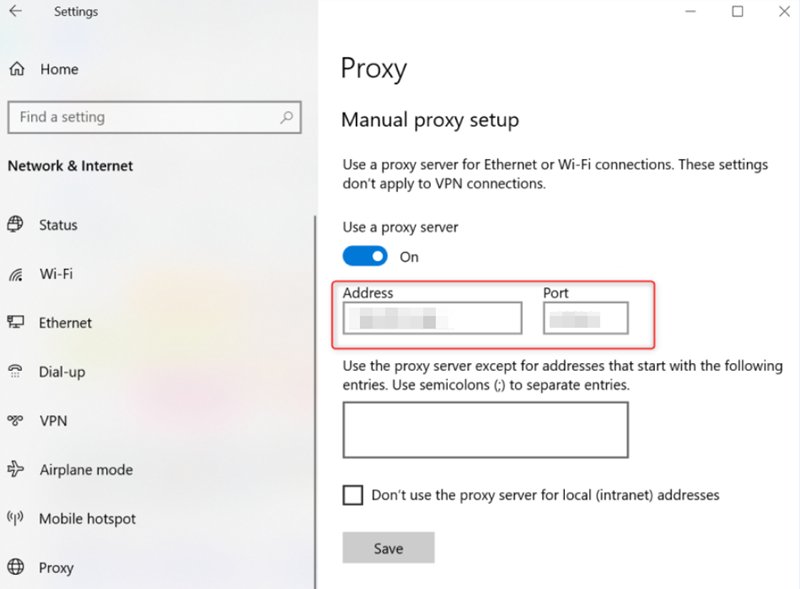
On Windows 10
The steps are almost identical. On the Proxy page, scroll to Manual proxy setup. Switch Use a proxy server to On. Enter the address and port. Click Save.
On macOS
- Chrome opens Network settings. This is System Settings on newer macOS, or System Preferences on older versions.
- Select your active connection, such as Wi-Fi or Ethernet.
- Click Details… (older macOS: Advanced…).
- Open the Proxies tab.
- Turn on Web Proxy (HTTP). Enter the proxy server address and port.
- Turn on Secure Web Proxy (HTTPS). Enter the same address and port. This setting covers HTTPS websites. Most providers give you one address for both.
- If your proxy needs a login, tick Proxy server requires password and enter your credentials. Chrome may also ask for them when a page loads.
- Click OK, then Apply.
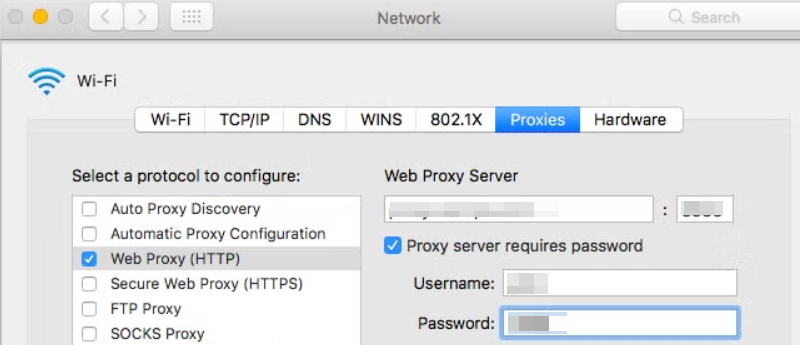
On macOS, proxy settings belong to each network connection. If you switch from Wi-Fi to Ethernet, set the proxy again.
On Linux
The result depends on your desktop environment. On GNOME (for example, Ubuntu), Chrome opens Settings > Network. Open Network Proxy, choose Manual, then enter your HTTP/HTTPS proxy host and port. On other desktops, use Method 2 or Method 3 instead.
⚠️ Heads-up: this method is system-wide. Want to keep your other apps on your normal connection? Use an extension or a command-line flag.
Method 2: Set a Browser-Only Proxy with a Chrome Extension (Recommended)
An extension keeps the proxy inside Chrome. It also lets you switch connections in one click.
Which extension should you use?
- Proxy SwitchyOmega 3 (ZeroOmega): the Manifest V3 successor to SwitchyOmega. The original SwitchyOmega stopped working in Chrome after Google phased out Manifest V2 extensions.
- FoxyProxy: another popular proxy manager for Chrome.
Many similar-looking clones exist. Install ZeroOmega through the links on its official GitHub page. Proxy extensions can see your browsing traffic, so install only from trusted publishers. 🔒
Configuration steps (ZeroOmega example):
- Open the Chrome Web Store. Search for Proxy SwitchyOmega 3 (ZeroOmega). Click Add to Chrome.
- Click the puzzle-piece icon in the toolbar. Pin the extension for quick access.
- Click the extension icon, then choose Options.
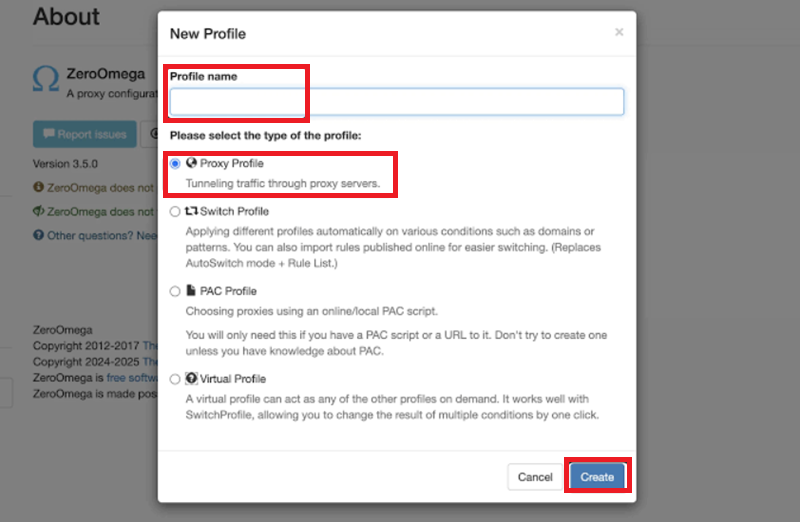
- Click New profile. Name it (for example, "UtaProxy US"). Select Proxy Profile and create it.
- In Proxy servers, choose the protocol (HTTP, HTTPS or SOCKS5). Enter the server and port.
- For an HTTP/HTTPS proxy with a login, click the lock icon next to the server row. Enter your username and password. Remember: Chrome cannot send credentials to SOCKS5 proxies.
- Click Apply changes in the left sidebar.
- Click the toolbar icon and select your new profile. To go back to your normal connection, select [Direct].
Pro tip: use the auto switch profile to send only chosen domains through the proxy.
Using Incognito? Chrome disables extensions there by default. Open
chrome://extensions, click Details on your proxy extension, and turn on Allow in Incognito.
Method 3: Launch Chrome with Command-Line Flags (For Developers & Automation)
Flags apply the proxy only to the Chrome instance you launch. They suit testing and scripts.
- Close every Chrome window and background process. If Chrome is already running, a new launch may reuse the old session and ignore your flag. You can avoid this by adding
--user-data-dir, which starts a separate, clean profile. - Run the command for your system (replace
IP:PORTwith your proxy details):
Windows (Command Prompt):
"C:\Program Files\Google\Chrome\Application\chrome.exe" --proxy-server="http://IP:PORT" --user-data-dir="C:\chrome-proxy-profile"macOS (Terminal):
open -na "Google Chrome" --args --proxy-server="http://IP:PORT" --user-data-dir="$HOME/chrome-proxy-profile"Linux (Terminal):
google-chrome --proxy-server="http://IP:PORT" --user-data-dir="$HOME/chrome-proxy-profile"Other useful flags:
- SOCKS5:
--proxy-server="socks5://IP:PORT" - Skip the proxy for some hosts:
--proxy-bypass-list="localhost;127.0.0.1" - Shorthand:
--proxy-server="IP:PORT"(Chrome treats it as an HTTP proxy)
Good to know:
- Chrome does not read usernames and passwords from the flag. For an HTTP proxy, Chrome shows a sign-in prompt instead.
- You can also add the flag to a desktop shortcut. On Windows, right-click the shortcut, choose Properties, and append the flag to the Target field.
Automation frameworks use the same flag:
# Selenium (Python)
options.add_argument("--proxy-server=http://IP:PORT")

// Puppeteer (Node.js)
puppeteer.launch({ args: ["--proxy-server=http://IP:PORT"] });
await page.authenticate({ username: "USER", password: "PASS" });Method 4: Deploy a Proxy with Enterprise Policy
Administrators can enforce a proxy across many computers. Use the ProxySettings policy through Windows Group Policy (GPO), the Google Admin console or other management tools. Users cannot change a proxy that policy controls.
To confirm that a policy is active, open chrome://policy on the target machine.
Learn more in the Chrome Enterprise policy list and Google's guide to configuring proxy settings on ChromeOS.
Let us compare HTTP and SOCKS5 protocols to determine which one fits your tasks best.
⚖️ HTTP vs. SOCKS5 Proxies in Chrome: Which Should You Use?
Review the table below to choose the right protocol:
| Feature | HTTP / HTTPS Proxy | SOCKS5 Proxy |
|---|---|---|
| Protocol layer | Application layer (Layer 7) | Below the application layer (commonly described as Layer 5) |
| How to set it in Chrome | OS panel, extension, flag or policy | Extension, flag, PAC script or policy (the standard Windows panel has no SOCKS5 field) |
| Login (authentication) in Chrome | Supported. Chrome handles Basic, Digest, NTLM and Negotiate. HTTPS proxies also support client certificates. | Not supported. Use IP allowlisting or a local forwarder. |
| Traffic handled | Web traffic: HTTP, HTTPS and WebSocket | General TCP traffic. The protocol also defines UDP, but check your setup for WebRTC leaks. |
| DNS lookups in Chrome | Done by the proxy | Done by the proxy |
| Best suited for | Web browsing, data scraping, social media management | Non-HTTP apps, flexible routing, tools that need generic TCP tunneling |
HTTP proxy vs. HTTPS proxy: what is the difference? 🤔
- An HTTP proxy can still carry HTTPS websites. It opens a tunnel, and your page stays end-to-end encrypted.
- An HTTPS proxy also encrypts the connection between Chrome and the proxy server. Chrome supports it. But system proxy panels generally cannot set one. Use a PAC script, flag, extension or policy.
Rule of thumb: choose HTTP/HTTPS for everyday browsing and scraping, because Chrome supports logins there. Choose SOCKS5 when your provider or tool requires it. Make sure it works without a username and password.
Once your proxy is set, you will want to check it. Here is how to test, turn off or remove a Chrome proxy.
✅ How to Test, Turn Off or Remove a Chrome Proxy
How to Test If Your Chrome Proxy Works
- Open a new tab. Visit https://ipinfo.io.
- Check the IP address, country and ISP. They should match your proxy, not your real connection.
- Visit https://browserleaks.com/ip to review more details, including WebRTC results.
- If your real IP shows up, check for conflicts. A policy or another extension may be overriding your settings.
How to Turn Off Proxy Settings in Chrome
Undo the method you used:
- System settings (Windows): go to Chrome Settings > System > Open your computer's proxy settings. Switch Use a proxy server to Off. Click Save.
- System settings (macOS): open the Proxies tab. Turn off every proxy type you enabled. Click OK, then Apply.
- Extension: click the extension icon. Select [Direct].
- Command-line flag: close Chrome. Relaunch it normally, without the
--proxy-serverflag. Also remove the flag from any shortcut. - Policy: only your administrator can remove it.
Next, let us troubleshoot the most common proxy connection errors encountered in Chrome.
🚨 Troubleshooting Common Chrome Proxy Errors
Is your connection failing? Check these fixes first.
1. ERR_PROXY_CONNECTION_FAILED
- Cause: Chrome could not reach the proxy at all. The server may be offline, or the IP or port may be wrong.
- Fix: verify the host and port in your provider dashboard. Check for typos. Try another network. If you no longer use a proxy, turn it off.
2. ERR_TUNNEL_CONNECTION_FAILED
- Cause: Chrome reached the proxy, but the proxy refused to open a tunnel to the HTTPS site. Common reasons include blocked sites, failed authentication or a proxy problem.
- Fix: check your credentials. Test another website. If the error appears everywhere, review your proxy settings or contact your provider.
3. 407 Proxy Authentication Required (or a sign-in pop-up that keeps returning)
- Cause: the proxy needs a username and password, and the credentials are missing or wrong.
- Fix: re-enter your credentials in the Chrome prompt or your extension. If your provider supports IP allowlisting, add your current outbound IP address in the provider dashboard.
4. SOCKS5 Proxy Fails When Credentials Are Included
- Cause: Chrome does not support SOCKS5 username/password authentication. It ignores credentials in a
socks5://user:pass@host:portaddress. - Fix: switch to an HTTP/HTTPS proxy. Or use IP allowlisting if your provider offers it. Or run a local SOCKS5 forwarder that handles the login for Chrome.
5. ERR_NO_SUPPORTED_PROXIES
- Cause: Chrome received a proxy value in a format it cannot use. A typo in the scheme is a common reason.
- Fix: re-enter the proxy as
host:portorscheme://host:port. Valid schemes includehttp,https,socks4andsocks5.
6. Chrome Hangs on "Downloading proxy script…"
- Cause: automatic proxy detection or a setup script is slow or broken.
- Fix: open your system proxy panel. Turn off Automatically detect settings and Use setup script, unless your network needs them.
7. Proxy Options Are Greyed Out or Chrome Says "Managed by Your Organization"
- Cause: a policy from your employer, school or installed software controls the proxy.
- Fix: open
chrome://policyandchrome://managementto see what is enforcing it. On a work or school device, ask your IT team before making changes.
8. Chrome Keeps Overriding Your Proxy Settings
- Cause: a conflicting extension, a VPN, security software or unwanted software is changing the proxy.
- Fix: disable other proxy or VPN extensions in
chrome://extensions. Review your system proxy panel. Then run a malware scan if the changes keep coming back. You can also trychrome://settings/reset. It turns off extensions, but it does not change your operating system's proxy settings.
If you need clean proxy endpoints for your Chrome setup, let us look at how UtaProxy simplifies the process.
🚀 Setting Up Proxies in Chrome with UtaProxy
UtaProxy provides high-performance proxy networks across 200+ global locations. Its pool has 100 million+ clean IP addresses.
Here is why it fits every Chrome method in this guide:
- 🔌 HTTP, HTTPS and SOCKS5 support. Pick the protocol your Chrome setup needs.
- ⚙️ Built-in endpoint generator. Create proxy connection strings in the dashboard.
- 📋 Copy and paste setup. Drop the host and port into your OS settings, extension or launch command.
- 🌍 Wide location coverage. Target the regions you need for testing or localized browsing.
🎯 Get Chrome-Ready Proxy Endpoints in Minutes
Stop hunting for working proxies. Generate your endpoint in the dashboard, paste it into Chrome, and you are ready to browse. Explore UtaProxy and generate your first endpoint.
Let us explore how enterprises and business teams apply Chrome proxies in real-world operations.
💼 Enterprise & Business Use Cases for Chrome Proxies
Configuring Chrome proxies supports many professional workflows.
1. Multi-Account Social Media & E-Commerce Management
Digital marketers often run many brand profiles. They combine Chrome profiles (or anti-detect browsers) with Static Residential Proxies. Each profile gets its own dedicated static IP. This "one account, one IP" approach helps reduce IP-based account linking. Note that platforms also look at other signals, so IP is only one part of the picture.
Tip: all Chrome profiles share the system proxy by default. To give each profile its own IP, use a proxy extension in each profile. Or launch each profile with its own --user-data-dir and --proxy-server flags.
2. Web Scraping & Automated Data Extraction
Developers who control headless Chrome with Python and Selenium route traffic through Rotating Residential Proxies. Automatic IP rotation spreads requests across many addresses. This helps reduce IP-based rate limits. Always follow each website's terms of service and the laws that apply to you.
3. Localized Ad Verification & Geo-Testing
Media buyers switch proxy locations to target cities in Chrome. They see competing Google Ads and landing pages the way a local consumer does. This helps verify regional pricing and promotion accuracy.
Review the quick answers below to common questions about Chrome proxy settings.
❓ Frequently Asked Questions (FAQ)
Q1: Does Chrome have its own proxy settings?
Not on desktop. Chrome follows your operating system's proxy settings by default. The "Open your computer's proxy settings" button simply opens your system panel. For a Chrome-only proxy, use an extension or a command-line flag.
Q2: How do I change proxy settings in Chrome?
Open Chrome Settings > System > Open your computer's proxy settings. Enter your proxy address and port in the system panel. Or use a proxy extension or a command-line flag for a Chrome-only proxy. See the step-by-step section above for details.
Q3: Does Google Chrome have a built-in free proxy?
No. Chrome is a web browser. It does not provide proxy servers. You need your own proxy server or a proxy service.
Q4: How do I test if my Chrome proxy is working?
After you configure the proxy, open https://ipinfo.io or https://browserleaks.com/ip. Check that the IP address, country and ISP match your proxy. Also confirm there are no WebRTC leaks.
Q5: How do I turn off the proxy in Chrome?
Turn off Use a proxy server in your system's proxy panel. If you use an extension, switch it to [Direct]. If you launch Chrome with a flag, relaunch it without the flag.
Q6: Does Chrome support SOCKS5 proxies with a username and password?
No. Chrome supports SOCKS5 proxies, but it does not support SOCKS5 username/password authentication. Use an HTTP/HTTPS proxy, IP allowlisting or a local forwarder.
Q7: Can I set a proxy in Chrome on Android or iPhone?
The Chrome mobile app has no proxy setting of its own. Set the proxy on your Wi-Fi network instead. On Android, edit the Wi-Fi network and open its advanced options. On iPhone, tap the (i) icon beside your Wi-Fi network and choose Configure Proxy.
Q8: Should I use free public proxies?
Avoid them whenever possible. Free public proxies are often overcrowded, slow and unreliable. Many log your traffic. They are also frequently blocked by websites. That poses real risks to your data.
🏁 Final Verdict: Master Your Chrome Proxy Configuration
Chrome proxy settings give you full control over how your traffic is routed. Use the OS panel for a simple system-wide proxy. Use an extension for daily Chrome-only browsing. Use flags for testing and automation. Use policy for managed fleets.
Remember the key limits too. The standard OS panel is built around HTTP/HTTPS, and Chrome does not support SOCKS5 logins.
Pair your setup with reliable residential proxies for stable, secure and unblocked browsing.
🚀 Ready to Put Your Chrome Proxy to Work?
Get clean proxy endpoints with HTTP, HTTPS and SOCKS5 support, then paste them into Chrome in minutes. Get started with UtaProxy today.

Daniel Carter
Proxy & Web Data Specialist
Daniel Carter is a Proxy & Web Data Specialist at UtaProxy, focusing on proxy technology, web data collection, and online infrastructure. He writes practical guides and in-depth insights to help businesses understand proxy solutions, choose the right proxy type, and build more reliable data workflows.